In this tutorial I tell you how to lock a folder for stop access personal files from unwanted visitors. So let’s start,
Necessary tools (Click to download):
- Folderlocker.exe (Password – Unknown Author)
Step-1
At first install WinRAR.exe (if you already install WinRAR you can skip this step.)
After install WinRAR it may work for 40 days, so I recommended you Active WinRAR by clicking here.
Step-2
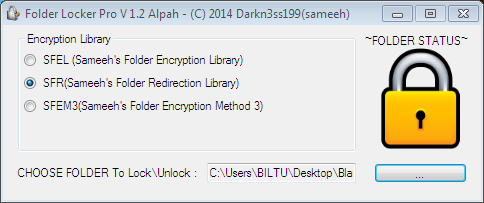
Open ‘Folderlocker.rar’ (Password – Unknown Author). Extract ‘Folder lock Windows’ and open it. Launch ‘FolderProtection.exe’. In the left side, choose Encryption Library to SFR (Sameeh’s Folder Redirection Library) and click on the browse button to choose folder.
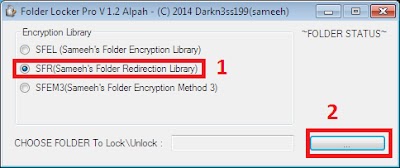
After choosing folder type your Password and confirm that and Press Okaybutton.
If you see lock icon on this page, you can sure that your files are locked safely.
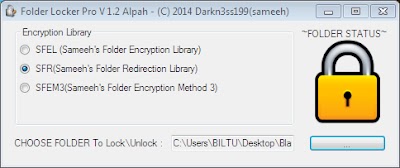
When you open the locked folder (I have choose the folder ‘Blank’), you can see that the folder is changed to ‘Recycle Bin’. Anyone can’t realized that the folder have personal files, because it looks and works like Recycle Bin.
Step-3
Keep this folder into your Root Directory (C:, D:) on your hard disk. Rename the folder to ‘recycle_bin{Random number}’ (without Bracket).
Step-4(Hide the folder and set the folder to system folder)
Go to Start menu> All Programs> Accessories click on ‘Command Prompt’. Type attrib +s +h and drag and drop the locked folder in to Command Prompt window and give enter.
Step-5(How to view the locked files)
Go to Start menu and search ‘Folder Options’ and open Folder Options. Click on View Menu; choose ‘Show hidden files, folders, and drives’ & uncheck the check box ‘Hide protected operating system files (Recommended)’ and press ‘Yes’ button, press ‘Ok’ button.
Open ‘FolderProtection.exe’ and browse the folder and press Ok button. Type your password and Press Okay button. When you see Unlock icon on the Application, you can access your protected personal files.
 Teck2Know